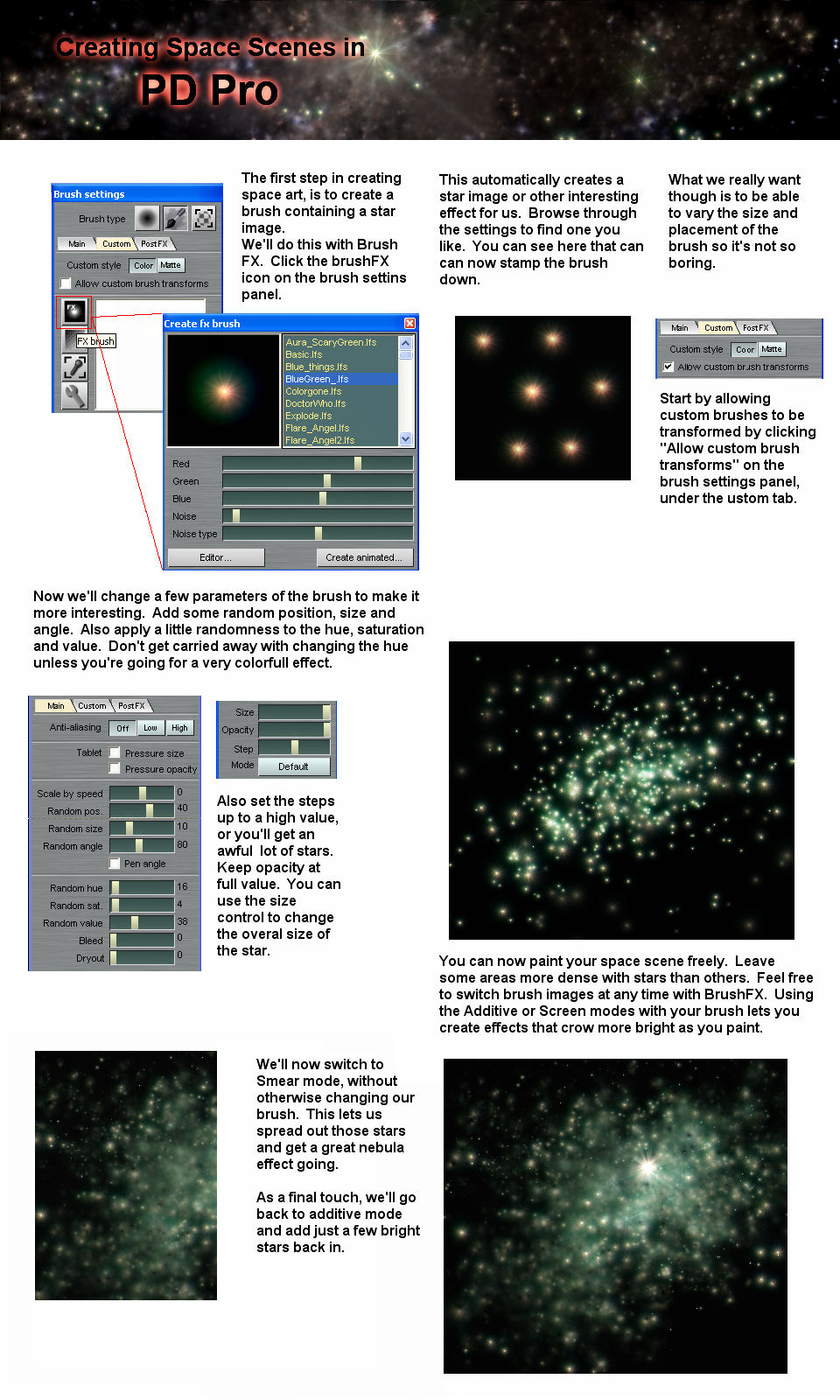
On
the brush settings panel is a little icon labeled 'FX'
On
the brush settings panel is a little icon labeled 'FX'
Clicking this icon brings up the Brush effects panel.
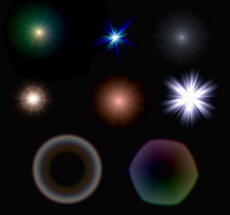 With
BrushFX, you can create a brush image that resembles a star, or a
number of unusual effects.
With
BrushFX, you can create a brush image that resembles a star, or a
number of unusual effects.
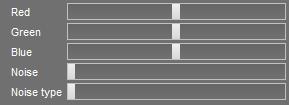 The
settings let you alter some of the basic parameters of the tool.
The
settings let you alter some of the basic parameters of the tool.
The Red, Green, and Blue sliders let you change the color of the image. Your BrushFx will commonly come with their own unique color settings, but these sliders let you add or subtract from their values.
The noise slider lets you add fractal noise to the brush effect.
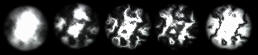
The noise type slider lets you select a numeric value that represents different types of noise.

The 'Create animated' button lets you create an animated brush, with the brush effect animated over time. The noise speed and streak speak can be altered, and you can set the number of frames (or images) you want to generate for the animated brush.


The settings panel lets you alter a tremendous number of attributes for your Brushfx. The settings must be saved in a file before they can be used. Use the file menu to save your settings.
The width and height parameters are not saved with the file. They are for the preview display only.
The flare color sliders alter the color of the effect.
The color falloff sliders change the color as the effect falls off from the hotspot
The Generation drop-down control lets you specify how the effect is generated. A linear value will give you a simple hotspot that falls off equally in a linear fashion. Hump will give you an effect that stays hot, then drops off very quickly at the edges. Square will give you an effect that is roughly square or diamond shaped. Pentagonal, Hexagonal, and Octagonal will give you an effect in those shapes.
The Falloff drop-down controls how the effect is shaded from the hotspot to the outside edges. A linear settings gives you a simple linear falloff. Exponential falls off much faster at the beginning and less quickly toward the edges. The curve setting is a more extreme version of exponential.
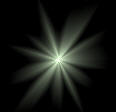 Streaks
controls the number of visual bands the radiate from the hotspot.
Intensity controls how intense the streaks appear.
Streaks
controls the number of visual bands the radiate from the hotspot.
Intensity controls how intense the streaks appear.
The Smoothing parameter controls how the bands look. Un-smoothed gives you a very hard, un anti-aliased edge on the streaks. Smoothed gives you a smooth edge that alters the shape of the effect. Enhanced gives you a smooth edge without drastically altering the roundness of the effect.
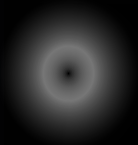 Aura
lets you darken the hotspot, so it appears to be an effect like a
solar eclipse, for example. The radius controls how much of
the hotspot to darken, pushing the brighter areas outward.
The additive setting simple adds the aura effect on top of the
original effect. It can be useful for creating effects like
lens reflections.
Aura
lets you darken the hotspot, so it appears to be an effect like a
solar eclipse, for example. The radius controls how much of
the hotspot to darken, pushing the brighter areas outward.
The additive setting simple adds the aura effect on top of the
original effect. It can be useful for creating effects like
lens reflections.
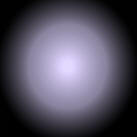 Example
of additive.
Example
of additive.
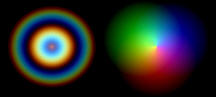 Spectral
applies a rainbow like effect to your Brushfx. The effect
can be either radial or angular.
Spectral
applies a rainbow like effect to your Brushfx. The effect
can be either radial or angular.
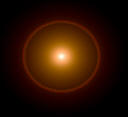 The
Ring setting adds a red outer ring around your effect.
The
Ring setting adds a red outer ring around your effect.