

Converting 3D a rendered animation to a
glow-in-the-dark neon lighting look
part1 - part2 - part3 - part4 - part5 - part6
 |
| Very
Affordable 2D + 3D Software Animation Tools at lowest prices! Poser - Anime Studio - Carrara - Manga Studio - Bryce and much more from Purplus |
| a
great companion to
Project Dogwaffle: AnimeStudio Pro is on sale!  Regular price:
$199.95
 Sale
price: $179.95 Sale
price: $179.95>> free shipping available in the US! |
Carrara 3D Express: wow!  affordable 3D for everyone: around $45 |
Adjusting the Color Back in the Timeline editor, you can adjust the color with the first filter. Reduce the reen channel amount to see it turn purple, reduce the blue a little too to see it turn pink'ish. 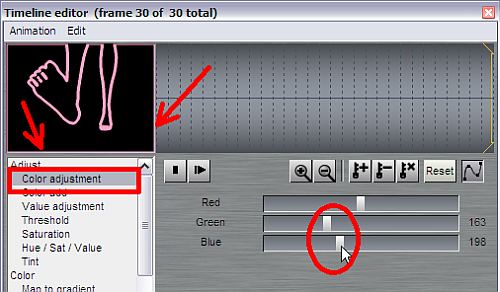 Render this filter across
the
timeline, now all frames have been tinted accordingly.
Selecting
and Cropping
Now we're ready to select
the
inside portion of the image, and crop to it. This will be an easy way
to get read of the white borders along the edges.
Use the 'Rectangle to Alpha' selection tool. 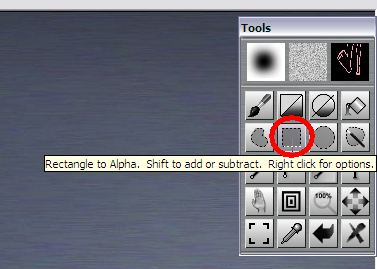 Click and drag from one corner of the image towards the diagonally opposite corner. For example, click near the upper left corner, well inside of the light border. Then drag it to the lower right corner and release the mouse button. The rectangular selection will be shown as marching ants (dashed animated lines).  Crop to your Selection Now that your selection is defined, crop to it. Use the menu: Image
> Crop to selection
This will not only crop the current image, but all frames in the animation the same way. 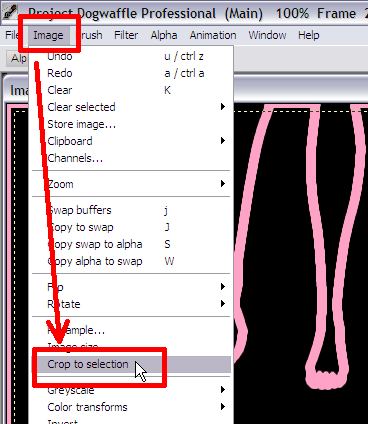 This will therefore eliminate the bright borders along the edges. Of course, you can skip this step of cropping if in fact you don't mind that border. 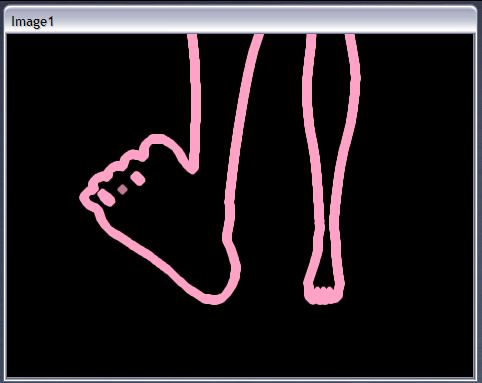 |
 |
 Poser 6 Collector's Edition Regular price: $229.95 Sale
price: only $59.95Free shipping in the US! |
|
|