

Filling a Rectangle with a gradient of colors
1 - part2 - 3 - 4 - 5

 |
| Very
Affordable 2D + 3D Software Animation Tools at lowest prices! Poser - Anime Studio - Carrara - Manga Studio - Bryce and much more from Purplus |
 |
| Easy,
powerful & affordable 3D with Carrara 7  (download versions at DAZ3D based on v7) Carrara 7 Express Carrara 7 Standard Carrara 7 Pro |
 |
| from
2D to 3D in just seconds! Simply draw outlines & shapes and see them automagically turn into fully textured 3D shapes! Archipelis Designer 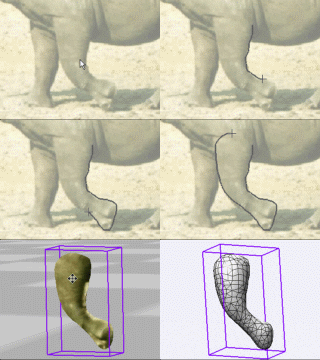 New! now also for Mac! |
|
Using Plain color to fill a rectangle To start, click the icon in the Fillsettings panel which does not show a gradient. The tooltip shows 'Plain old color' 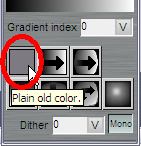 Select the desired color. For example, pick an orange color 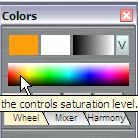 Using the fill rectangle tool, go ahead and dlick-and-drag the marquee rectangle to your desired size.  As soon as you release the mouse, it will fill it with plain color.  Using a Gradient to fill the rectangle Now switch to the next fill mode in the Fill settings panel: horizontal gradient.  Draw another filled rectangle. This one will use the current gradient to fill the area.  If you need that gradient to go from top to the bottom instead of left to right, use this mode: Vertical Gradient: 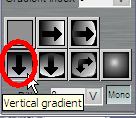 If you don't want it from black to white but instead from white to black, just reverse the gradient:  After reversing it, the gradient might look like this:  Here are two filled gradient rectangles with original and reversed gradient:  Here's a smaller one inside a larger one, after reversing the gradient: 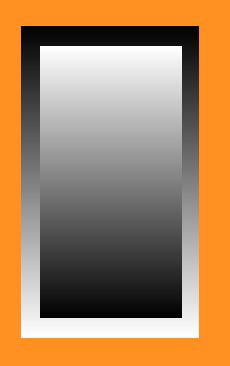 |
 |
 The perfect marriage: |
|
|
|
|
|
|