

Filling a Rectangle with a gradient of colors
1 - 2 - part3 - 4 - 5

 |
| Very
Affordable 2D + 3D Software Animation Tools at lowest prices! Poser - Anime Studio - Carrara - Manga Studio - Bryce and much more from Purplus |
 |
| Easy,
powerful & affordable 3D with Carrara 7  (download versions at DAZ3D based on v7) Carrara 7 Express Carrara 7 Standard Carrara 7 Pro |
 |
| from
2D to 3D in just seconds! Simply draw outlines & shapes and see them automagically turn into fully textured 3D shapes! Archipelis Designer  New! now also for Mac! |
|
Defining the Gradient Colors There are several ways to set the colors through which the gradient evolves. One is to drag and drop a few colors from the color well. This is useful especially if you want to set a few 'key' colors of precise RGB values.  In the color palette, below the various tabs of different color mixes, you will find one that shows the color well. This is the one seen by default. You can click any of these to drag-and-drop them onto another color. That will cause them to be exchanged. You can also drop one onto the Primary or Secondary color. 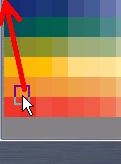 You can also pick, drag and
drop one such color from the color well over to the gradient panel:
Drag the select color into the gradients panel, and drop it in the scale at the bottom of the gradient. A triangle of the same color will appearwhere you dropped it.  The gradient will now include the dropped color:  If you want that color at the very left edge, drag the triangle to the wanted postion: 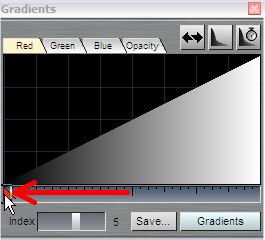 Don't move it too far, or you'll see the triangle disappear as it falls off the edge.  Drag and drop another color from the color well, into a different place of the gradient scale:  Now you have two control colors along the gradient. You can adjust its horizontal position on the scale too. Move it to the right edge, for example: 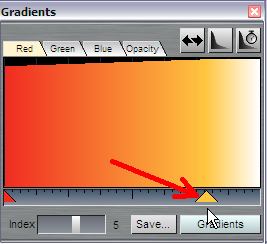 After moving the color to the right end of the gradient, drag yet another color, near the middle: 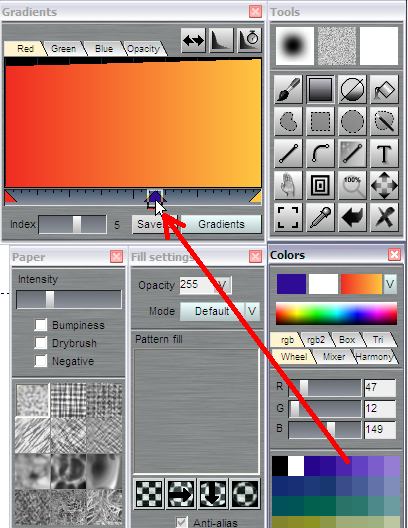 Now we have a gradient defined by three control colors.  Here's an effect obtained by drawing a filled rectangle with this gradient, then reversing the gradient, and drawing another, smaller rectangle inside the first one. 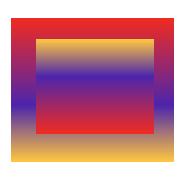 |
 |
 The perfect marriage: |
|
|
|
|
|
|