|
|||
|
|


Newest Videos:
Blind Mode in Batch Translator
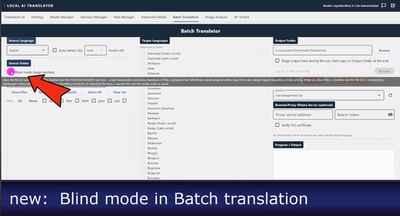
https://youtu.be/r8jbGzKGIsM?si=fPkDUOlhj7cxAmms
Getting Started:
Hearing your first translation
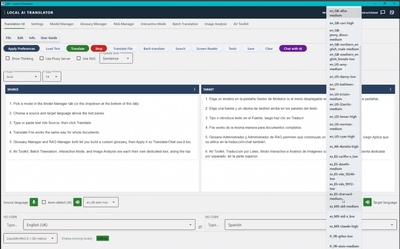
https://youtu.be/Fl_UtL5Rmsg?si=5Wrt5yLxVcJxDHde
See all Videos in our YouTube Playlist
Exploring some of the local Voices
powered by Piper
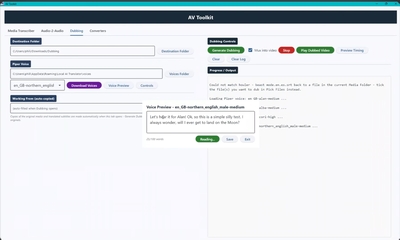
https://youtu.be/OUC6X8EbnuA?si=3sFNNVcGkusLpYPF
Here are some key features you might like in the Local AI Translator:
new!
Interactive
Mode (like a CAT tool)
new!
New Image
Analysis Tool (w/OCR)
new!
Speech Input
& Chat with AI
Recent additions:
batch mode: new interface, RAM drive & model selection
multilingual search
new features in batch search - the Match Matrix
Multilingual - language detection at main interface
local ai finetuner - first sneak peek narrated
What happens on my PC stays in my PC
There are many more features already implemented and more coming.
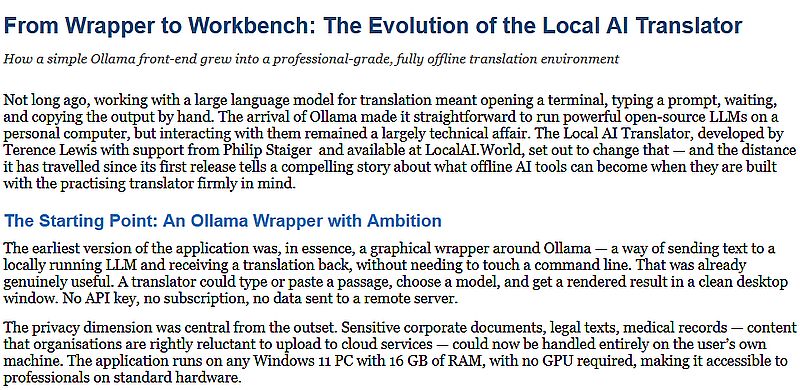
Here is a review of the evolution of the Local AI Translator and its main features:
Local_AI_Translator_Article.htm
Want to learn more?
Learn more about Local AI Translator here:
https://localai.world/
Secure Offline AI Solutions
Back Translation
(1)
Enter some text in the input (source) pane to the left side. Then click the green Translate Text button.
(2)
You will see the resulting translation in the output aka the target pane to the right side.
(3)
Next to the green Translate Text button, you'll find the Back-translate button. Use that to translate it back to the original language. This can help you assess if the same thing is being said after reverse translation. That can be useful if you don't know the translation language. It could always sometimes reveal other ways to say just about the same thing, which could be of interest to you sometimes too. It might even correct typos along the way. It might fix punctuation, capitalization and other fine details. It might also help you find synonyms that you might like better.

In this example you'll notice just a few very slight differences, such as:
original: How can I assist you today?
reverse: How can I help you today?
original: If you have any questions...
reverse: If you have questions...
Transcription
You can now transcribe audio files (such as mp3 or wav) and video files (i.e. the audio track in a video file such as mp4).
The transcription can be done locally, as it uses faster-whisper. No internet connection needed. No need to send the media files to the cloud.
You can submit the transcription request for a single selected file or a collection of files from a folder.
The transcription will auto-detect the language.
The timestamps will be available too.
Several file formats are available to save the resulting transcriptions, such as plain text or Tab-separated values, and formats for subtitles. (SRT, VTT)
You can also preview the selected files prior to submitting them to transcription. Play the audio, or play the video too.
Here is an example.
Batch Translations
A great new feature is the ability to select a folder and translate many or all text files found in that folder. This is particularly useful when working in e-Discovery / Forensics and dealing with hundreds or even thousands of text files. Such text files might be small but in high numbers. For example, they might have come from transcribing many mp3 audio recordings or short dialogs. Or you might have originally had a large file that was split into many small ones, perhaps one file per sentence or paragraph.
Of course the speed and quality of translations will vary with your system configuration and chosen model.
Start by clicking the Batch Translation button in the top menu bar.
(1) then use Select Folder to navigate to and select a folder that has your text files.
(2) Click Show files to see the text files found in that chosen folder
You can then also use Select All, or click individual files. They will be highlighted to indicate that they've been selected.
(3) Then click Translate Selected files. This will start the translation of all selected files, one after another.
For each file you'll also see some statistical info, such as how many words were translated and how long it took.
At the end, you'll also see a summary, showing a total number of words and total elapsed time. This is then also used to calculate and show the throughput. It can be useful to get an idea of how fast your solution is. When you choose a different model, it could be faster or slower. Or if you run it via a secondary server where Ollama runs on a faster system, you might also see the benefit of such load distribution.
After batch translation has completed, you will find the files in the Downloads/Translations folder.
The image below shows the original (English) files (above) and the translated ones in French (below)
Filenames now showing the target language:
Now you will see the name of the file as it was seen originally, PLUS the addition of the target language code.
For example, if the original file was
myfile.txt
and you translated it to French, the new filename will be
myfile_fr.txt
If you later change the target language and re-translate the same file(s), for example to Spanish, then you'll see the same files in the Downloads/Translations folder but this time with the new language code (_es) so as to avoid accidentally overriding the prior translated files.
Below is an example showing Files translated to Spanish after the same were translated to French. The same files appear with _fr in the filename in addition to the new _es filenames:
Batch Translations - evolved!
Here is a recently added recording where we play with two different models and translate multiple files either from a single source language, or using the auto-detection feature to translate multiple files in a folder that are in multiple source languages. The target translation can also be a single language, or again multiple targets.
In this example we initially used translategemma:4b and later switch to one of the faster models from liquid AI, at 1.2b size: liquidai/lfm2.5-1.2b-instruct:latest. If your use case finds it to be good enough in quality for mass translations, you might consider one like that.
Interactive mode - Sneak Preview #4
The new Interactive Mode offers features similar to CAT (Computer Aided Translation) tool, where you can see each sentence of a document side-by-side with its translation.
We've had a few previews as the tool evolves. Here's #4. Not latest. Check the playlist for more.
Image Analysis Tool and OCR - Improved
The image analysis tool has been updated. There are a few more features.
Speech input and Chat with AI
New and improved features for chatting with the AI and using your voice for speech input. Also: what happens on your PC stays in your PC. It's all happening locally.
Optimizing for Speed
There are several factors that can affect the speed of your translations with the Ollama-based models.
- GPU: Does your PC have a high-end graphics card, such as Nvidia 5080 or better, and does your chosen model(s) even try to use it?
- NPU: Does your PC come with a NPU neural processing unit) cip, such as Intel i7 Ultra or i9 Ultra, which can improve speed of inference?
- RAM: Do you have enough RAM to avoid swapping for the size of your LLM and is it fast memory, such as DDR5?
- Cores: Does your PC's CPU have a high number of CPU cores, but only a few of them are 'performance' cores? Ollama will, by default, use the performance cores, not all cores. (This can be adjusted, see below for more details.) If you have a system with multiple CPUs such as 2 or 4 Intel Xeons at 12 or 16 cores each or more, totalling 24 cores and more, you may want to run the task manager showing all logical cores, to see if they all participate during translations.
- Disk: Are you doing mass translations of a large number of small files to and from a slow-spinning hard drive that is highly fragmented? You might want to defrag such a disk before translating thousands of files, and/or use a fast SSD.
- Backup: Is the output folder being monitored by OneDrive or similar cloud hosted backup tools? This can potentially slow down the saving of the translated output file before engaging the next file to be translated in the batch loop. If speed is your main concern, you may want to use a local hard drive or SSD or a partition or folder for the output that is not monitored during translation.
- Antivirus: Disabling antivirus scanning on such folders might also help further with speed. Some antivirus tools use a cloud-based system (example: ESET Livegrid) to compare new files with known malware. Disabling such 'scanning' or the access to the internet might help a little too.
There are other factors, some of which may be under your control. For example, you might be using a :12b model when a :4b model might be good enough. Or you might want to consider some models that are specifically trained for just a single language pair, optimized for that, and keep small and fast at the same time.
Over time we'll hope to show some examples of models and their speed at our Youtube channel. Here's an example:
batch translation with source language auto detection
Adjusting some settings?
Interestingly, the Local AI Translator now lets you adjust some of the parameters of the Ollama system. Here is a look at some of the parameters that may get you additional speed:
Access the settings for the model from the Model Manager: Model Settings
You will see the default settings, similar to this:
Here are a few notes that might help when optimizing for speed:
Temperature: try 0.1
The temperature may indirectly help with speed, by resulting in shorter, tighter output. Its real purpose is for Determinism / Consistency. A small value can indirectly get you better speed.
Max Tokens (num_predict): try 400
This parameter will put a hard cap on output length. It is meant to prevent over-generation. Try a few values on test samples.
Number of Threads (num_thread): try total number of CPU cores, minus 2. For example, if your CPU has 20 cores, try 18.
The Recommended value shown is usually based on that. However, the default value (0) will let Ollama determine the value to use. If your CPU has a mix of performance cores and non-performance (regular) cores, it may chose to only use the performance cores. This is your chance to override it. It may or may not have an impact on speed. Try it to find out. Some very small files might spend more time in other overhead (such as disk i/o) when doing batch translations and not always show a benefit for increasing the thread count.
Want to learn more?
Learn more here (Translation, Transcription, Medical, Legal and more secure local AI tools):
https://localai.world/


