The perfect marriage:
|
from
2D to 3D in just seconds!
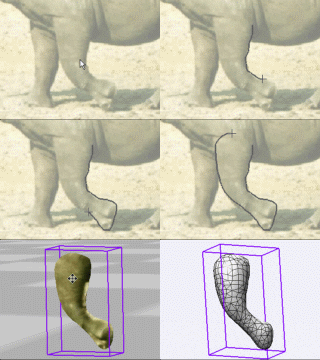
Just trace an
outline and see it automagically
turn into
fully textured 3D shapes for Second Life, Google Sketchup / Google
Earth, Direct X & Games, Wavefront OBJ and other popular 3D file
formats!
Archipelis
Designer
rapid
3D model creation and prototyping from mere images - for 3D content
creation, games, IM Avatars, SL models, 3D illustration in Photoshop(R)
and more
New!
now also for Mac!
|
|
|
Here's a quick look at the most important features
of this plugin.
(click the above YouTube
video for more display options)
Note:
do you have an early version?
If your version looks like this:
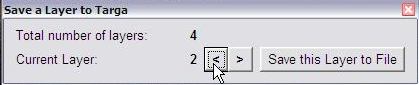
...then you have an earlier version which only allowed saving to single
file per one layer at a time. The newer version also has an option to
save all layers into a numbered file sequence. Be sure to grab it and
use that version.
The latest version
looks like this:

WARNINGS:
Please be aware that if you save layers as a sequence, it will not
check if the files you're saving to already exist. They will be
replaced with the new files, and thus you could loose precious artwork
in those pre-existing files. Make sure therefore to use this only for
saving into a new empty folder or with a unique, non-existing base
filename. Use with caution.
Be aware also that when saving to a sequence, it will notice if your
base filename already contains a numeral such as 0000 at the end. It
will offer to remove (strip) this number since it will be adding its
own number sequence (_0000, _0001, _0002, etc...), but this is optional
and you can keep the entered base filename is you prefer.
Quick Reference Guide
Here's a summary of what to expect:
- Total layer count:
This shows how many layers are in PD Pro. Also, if you add or delete a
layer through the normal
layer panel's interface while this plugin is already running, this
number won't show the current true value anymore, but you can refresh
this total number shown in the
plugin simply by clicking the panel's background;
- Save all layers as
file sequence - this button lets you choose a base filename to
save all layers to. The program will create a number sequence starting
with _0000 and going up for each layer. The current version saves to
Targa files in 24-bit mode only, no alpha included (since layers don't
have an opacity mask in the current version). Example: if you name the
base file "Layer" and there are 5 layers in your Dogwaffle image, you
should expect to find these files:
Layer_0000.tga
Layer_0001.tga
Layer_0002.tga
Layer_0003.tga
Layer_0004.tga
You can then easily transfer these files into other applications.
Note that they don't contain transparency, i.e. they will be seen with
opaque background color (such as white).
You can also load these back into Dogwaffle as an animation sequence.
- Current layer number:
the currently selected layer is shown here. If you change it in
Dogwaffle's layer panel, click inside the plugin to refresh this value.
- The [ < ] and [
> ] buttons:
You can move up to the next layer or descend to the previous layer by
clicking the small square buttons containing the Left and Right arrows
( <, >). If the Layer panel is open at the same time, you will
see the switch in there too.
Note that the first layer
number is 0 (zero), not 1.
- Save this Layer to
File: use this to save the current layer and only that
layer to a single file. Note that in this case, it will warn you if you
attempt to override an existing file.
Enjoy!
|
|
|