

Filling a Rectangle with a gradient of colors
1 - 2 - 3 - 4 - part5

 |
| Very
Affordable 2D + 3D Software Animation Tools at lowest prices! Poser - Anime Studio - Carrara - Manga Studio - Bryce and much more from Purplus |
 |
| Easy,
powerful & affordable 3D with Carrara 7  (download versions at DAZ3D based on v7) Carrara 7 Express Carrara 7 Standard Carrara 7 Pro |
 |
| from
2D to 3D in just seconds! Simply draw outlines & shapes and see them automagically turn into fully textured 3D shapes! Archipelis Designer 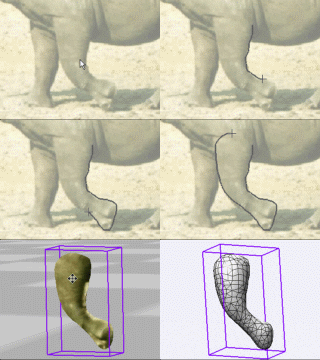 New! now also for Mac! |
|
Adding a Thick Outline When working with alpha, it's easy to add an outline of some sort to the current selection: Simply store the selection, then grow or shrink it, then store that version, and use Subtract alpha to subtract one mask from the other stored version. The resulting mask will define the outline region, and you can fill it or paint its color to your heart's content. Using the prior image, where we just filled the rectangle with rounded egdes, the alpha mask is still present.  Use "Grow alpha..." 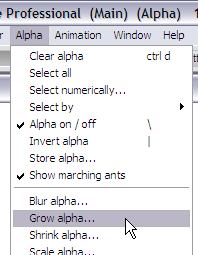 Give it a few units of growth. 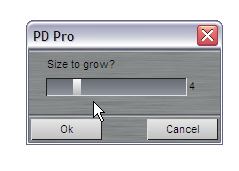 The selected region is now distinctly bigger than the filled region.  Store this alpha image too. You now should have two storedalpha masks, one a little 'larger' than the prior: 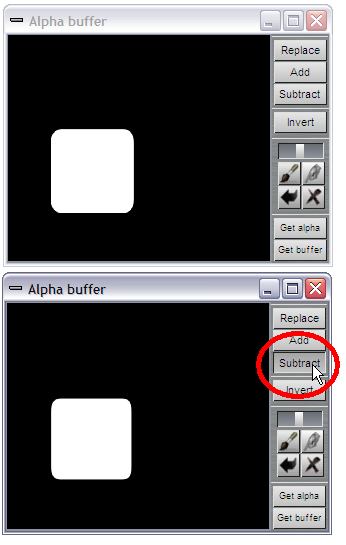 Since the currently loaded alpha channel is the most recently enlarged one, click 'Subtract' on the smaller stored version. That will subtract (remove) the selection found in the stored small mask from the loaded larger mask. You now have two lines of marching ants, indicating the inner and outer limits of the selected thin band: 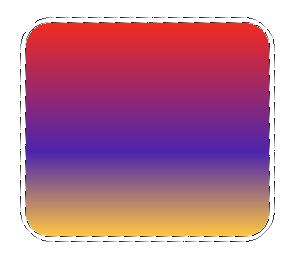 After storing this alpha mask, you can see this: 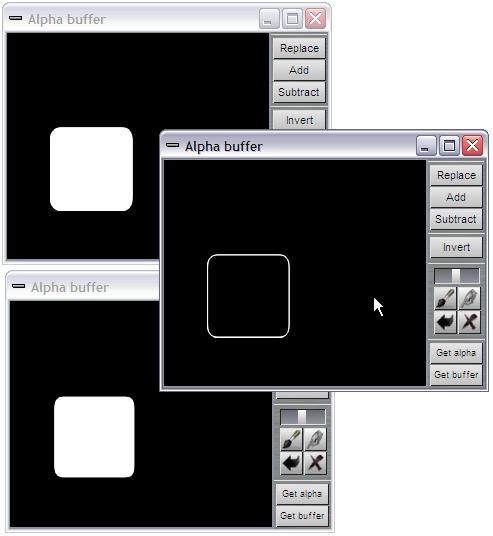 You can now use various tools to colorize that selection, such as painting just inside that selection. Or you can use this thin mask to 'Clear selected', to whatever the secondary color is.  If you want this border to be embossed, you can use the Effects tools at the bottom of the alpha menu: 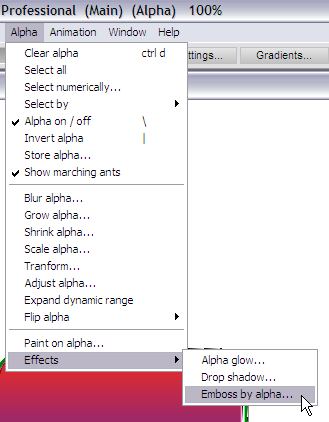 You can also use the Drop shadow effect from the same Effects menu in Alpha. 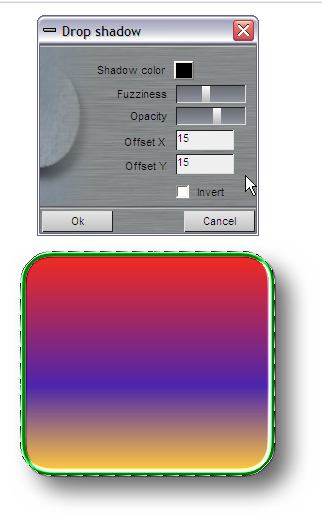 The text tool can also be rendered into the alpha channel. Use this to place a stencil there and fill it with even more color variations. In this example, we've also enabled the paper texture:  |
 |
 The perfect marriage: |
|
|
|
|
|
|