

Teddy
Bear
turn an image into a 3D model... in a few minutes
turn an image into a 3D model... in a few minutes

| free!
teddybear model in Wavefront OBJ and DirectX .x format with supporting texture file: teddybear.zip size: 3.17 MB (3,331,152 bytes) |
Tracing the first Ear
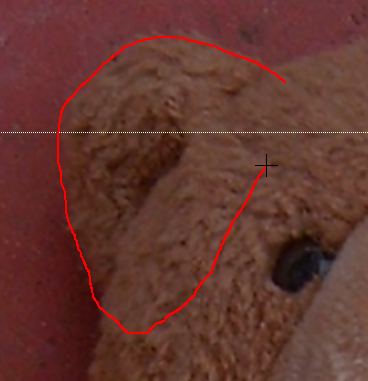
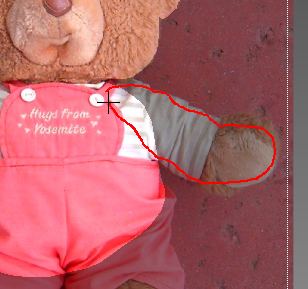
Use the prior technique to zoom in close to the object you want to trace and pick up as a 3D object. For example, the left-side ear (the bear's right ear)
Use the right-mouse button to trace the outline, which will appear in red.
| a great companion to
Project Dogwaffle: AnimeStudio Pro is on sale!  Regular price:
$199.95
 Sale
price: $179.95 Sale
price: $179.95>> free shipping available in the US! |
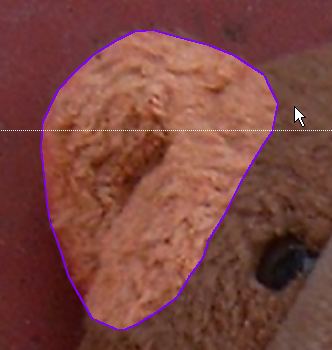
As soon as you release the right mouse button, it completes the outline selection. Archipelis creates a 3D mesh based on the shape of the traced outline, and assigns u,v texture addresses along each vertex of the mesh so as to pick up the same details from the image behind.
| Getting
started with Digital Painting on a slim budget:  PD Artist now $29! Draw, Sketch, Animate & Paint powered by Project Dogwaffle |
If you like PD Particles then you'll LOVE
PD Pro see what's new in v3.5 and free update patches even better, check: what's new in v4.1? |
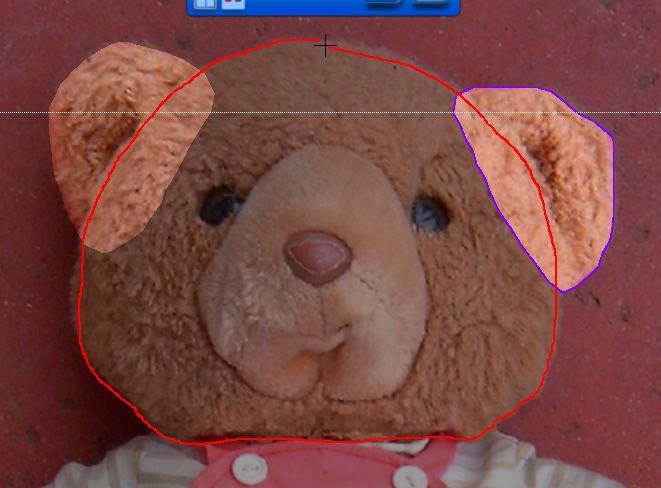
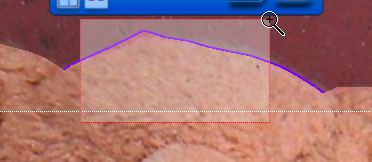
Correcting a few points along the outline
| a great companion to
Project Dogwaffle: AnimeStudio is on sale!  Regular price: $59.95 Sale
price: $39.95(boxed!) |
| Great
& affordable Animation Tools 2D + 3D Software at lowest prices! Carrara - Bryce - Poser - Anime Studio - Manga Studio and more |
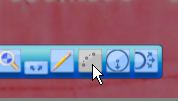
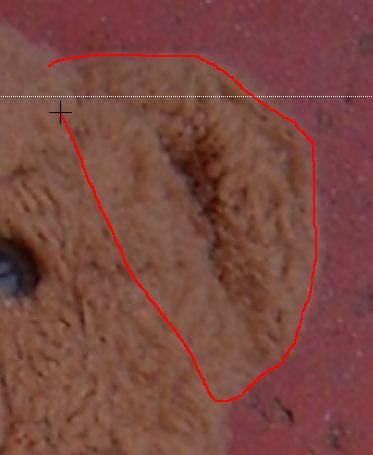
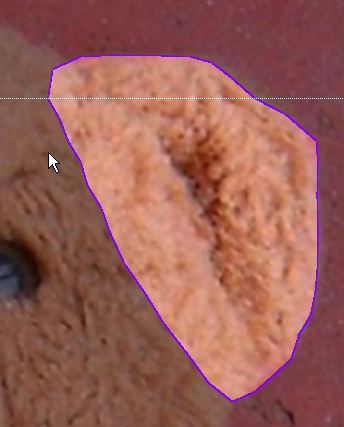
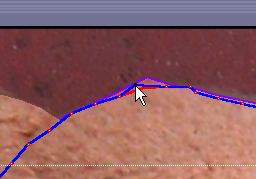
Then select the icon in the bottom right tool panel which lets you view and edit each of the points defining the outline curve.
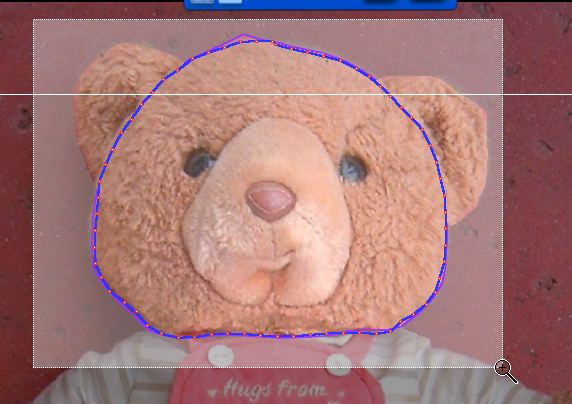
Use the Right mouse button to adjust the postion of the points marked by red dots. If you move a point a lot, the neighboring points start moving with it. You can alos jiggle the point back and forth and inline with the curve instead of perpendicularly to it.
Try and play to adjust the shape.
Adding more Body Parts
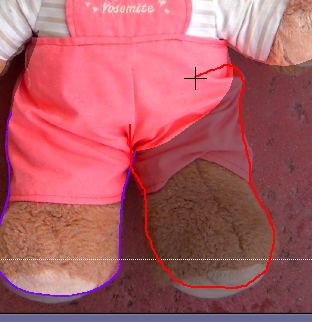
Trace a few more objects. The arms, the chest, legs etc...
 parallels desktop for Mac   redefining the meaning of window-shopping on a Mac |
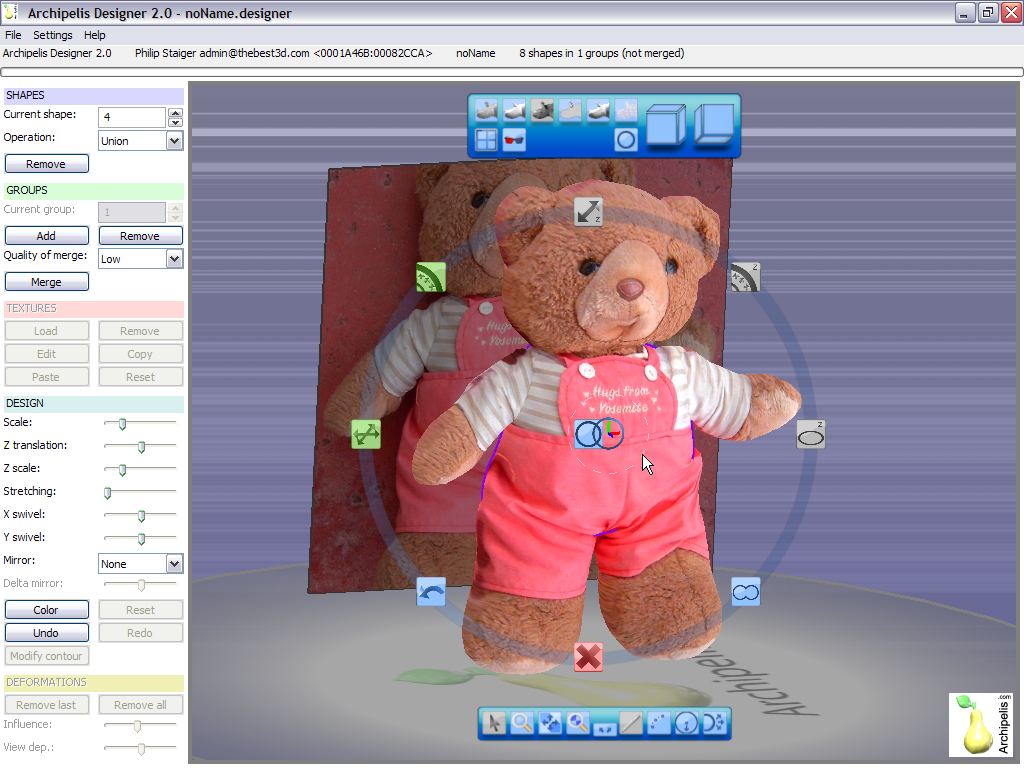
Adjusting a model & interactive viewing
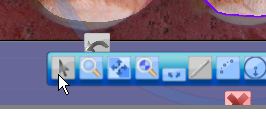
On the tools pabnel, in lower left, click the arrow pointer tool next to the magnifying glass.
In that mode, the currently selected item shows a ring of tools for manipulation.
For example, click the middle body part or chest. Then use the left mouse button on the background to orbit around the selected object of the scene.
 |