In this tutorial
we'll explore more of the controls of particle brushes, and ways to use
them within animations. This can be useful for explosive effects,
fireworks and more fancy backgrounds.
|
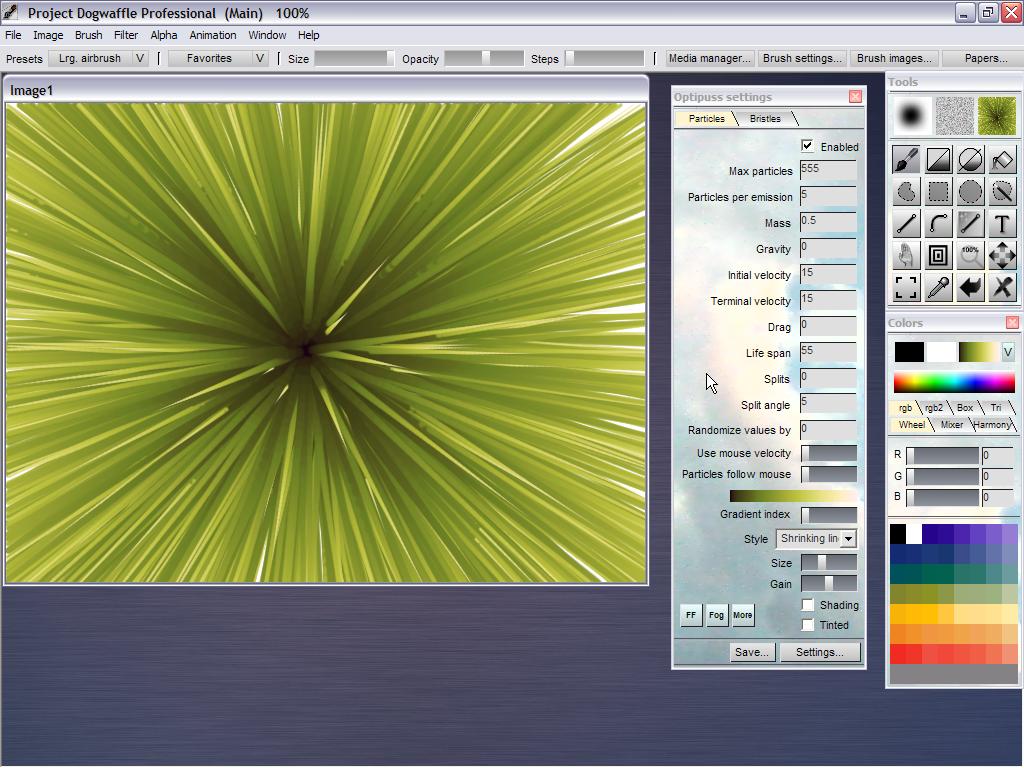
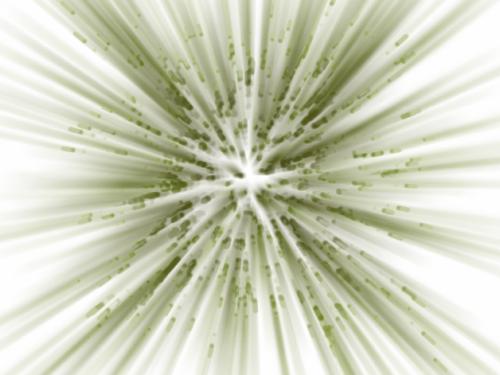
Click the image
below and note the parameters in the particles panel. It was started
with the Grass preset, and then modified to create the look you see.
 |
In particular, these
are the key parameters changed from the initial values for Grass':
Max. particles: 555
Particles per emission: 5
Gravity: 0
Initial velocity: 15
Terminal velocity: 15
Drag: 0
Life span: 55
Randomize value by: 0
use mouse velocity: 0 (left end)
Shading: unchecked
The above image shows a possible resulting image if painting at or near
a single point by the middle of the image buffer. Essentially by
drawing around in small circles..
Ending
with SHIFT down:
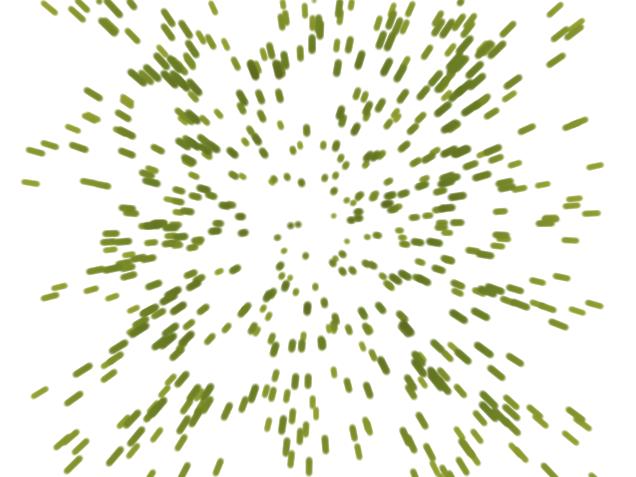
When you stop drawing a brush stroke, there are a number of particles
still alive which haven't ended their life span yet. You will see them
as 'short' stubs of uncompleted particle trails, like here:
|

To avoid thiese, press and hold the Shift key down when you want to
stop generating any new particles. Keep moving the mouse. No new
particles will be created while SHIFT is down.
|
 |
Disabling
the SPLINE interpolation:
By default, PD Pro may be using spline interpolation for drawing
between points recorded as the latest brush stroke. When you use
SHIFT-A (again) to re-render the most recent brush stroke, it can
generate many more points by way of sline interpolation than were
initially recorded.
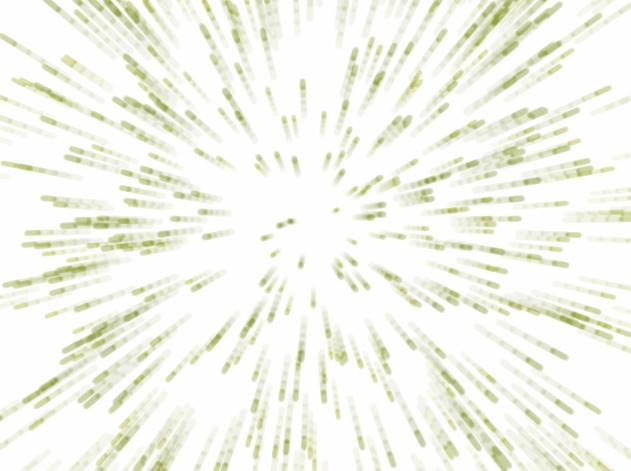
Below is an example: drawing from left to right, then using 'u' for
undo, then SHIFT-A to re-render the brush stroke:
|
  |

Spline interpolation can be disabled.
In PD Pro 4, look for the Settings submenu in File menu:
File
> Settings...
In earlier versions it's been known as the Prefs menu (Preferences)
|

Select the"Interface" tab.
Look for the Spline
based input checkbox.
|

Uncheck
the Spline based input option
|

Click 'Save' to save your changes.
|
Now, if you undo and then SHIFT-A to re-render the most recent brush
stroke, it will go through the same number of points as initially
recorded for the brush stroke.
 
The particles may and will shoot in different directions each time but
they'll be roughly the same number or disance between emissions.
Draw a lengthy brush stroke around the center. If you then use 'undo'
and redraw it with SHIFT-A, it will look similar to the original,
albeit with differentrandom 'directions'; for the particles.

|
Painting
Particles into an Animation:
Get ready for animations now:

Start with a Blank image. Use
Animation
> Create...
and create an animation of a few frames, perhaps 30 to 60 frames.
|

In the same menu, launch the Stroke Player:
Animation
> Stroke player...
|
Set the Playback mode to 'All frames':
 |
Then click 'Replay' in the Stroke player. This will cause the particles
to be re-rendered, using the most-recent brush stroke.
here is the avi file: vid2.zip
(vid2.avi - xvid codec, 105 KB)
|
Exploring
Further:
You can change parameters, such as brush style from Shrinking lines to
Line or Brush and 'push' the current regular brush (internal brush or
custom brush) along the particle paths. And then re-render the brush
stroke. We'll explore this later.
Another thing you can also do is to pick up the animation as an
animated brush, and start painting funny things with this. That too
will be explored further.
For now, let's play with the parameters and make it look more like an
animated cosmic blast or explosion.
|

Increase the number of particles that the system generates per
emission.
|
You now will see
more particles ejecting from the center at the same time.
|
Ready to re-render it with the Stroke player? Start from a blank
animation or add the new rendering over the prior animation.
Here's a possible animation resulting from it:
|
stay tuned for more
to come:
|
 |
|
 |
|
 |
 |
|
|
|
Fireworks:

click to see animation
|
animated tadpole explosion
(using displacement map from Swap buffer)
click here to see larger version
|