

Converting 3D a rendered animation to a
glow-in-the-dark neon lighting look
part1 - part2 - part3 - part4 - part5 - part6
 |
| Very
Affordable 2D + 3D Software Animation Tools at lowest prices! Poser - Anime Studio - Carrara - Manga Studio - Bryce and much more from Purplus |
| a
great companion to
Project Dogwaffle: AnimeStudio Pro is on sale!  Regular price:
$199.95
 Sale
price: $179.95 Sale
price: $179.95>> free shipping available in the US! |
Carrara 3D Express: wow!  affordable 3D for everyone: around $45 |
| The Timeline Editor - Filters along the Animation Timeline  From the same Animation menu, select 'Timeline...' You will see many filters in the timeline editor, similarly organized to what you see in the Filter menu. The main difference being of course that the ones from the Filter menu apply mostly to a single current image, whereas the ones from the Timeline editor will be applied to all frames of the animation, and you can even key-frame their parameters along the timeline. Threshold filter The Theshold filter is amongst the 'Adjust' group. Select this filter.  Notice that many details might initially be invisible, depending on how birght or dark they are. Adjust the Theshold slider for better results. Here you see the legs and feet better than before, but some bright spots are still missing, i.e. under the foot or along the shins, which are the brighter parts in the original. Keep adjusting.  Find a threshold balue where the whole leg, foot and toes are appearing black.  Once you have a good value for the threshold, click the Render button in the lower right corner of the TImeline editor window. This will render, or apply, the filter across all frames of the animation sequence.  You now have an image seuqnce which could be described as a selection mask, or the inverse of it. This is a good starting point to perform an edge detection on it. 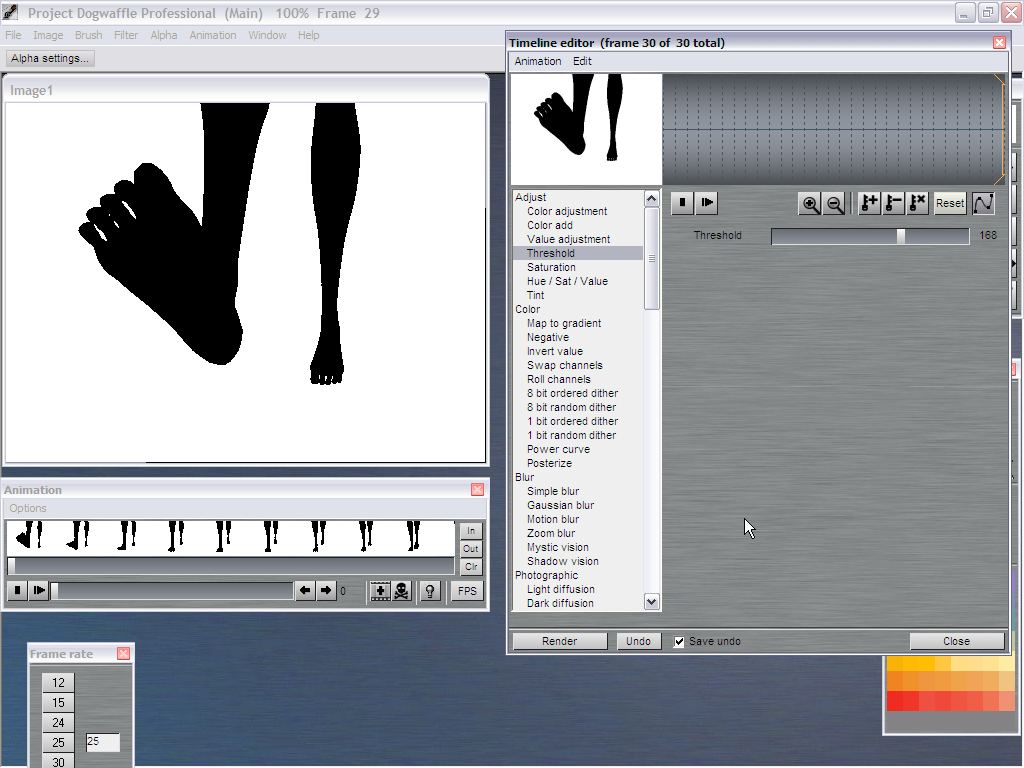 |
 |
 Poser 6 Collector's Edition Regular price: $229.95 Sale
price: only $59.95Free shipping in the US! |
|
|