

Converting 3D a rendered animation to a
glow-in-the-dark neon lighting look
part1 - part2 - part3 - part4 - part5 - part6
 |
| Very
Affordable 2D + 3D Software Animation Tools at lowest prices! Poser - Anime Studio - Carrara - Manga Studio - Bryce and much more from Purplus |
| a
great companion to
Project Dogwaffle: AnimeStudio Pro is on sale!  Regular price:
$199.95
 Sale
price: $179.95 Sale
price: $179.95>> free shipping available in the US! |
Carrara 3D Express: wow!  affordable 3D for everyone: around $45 |
|
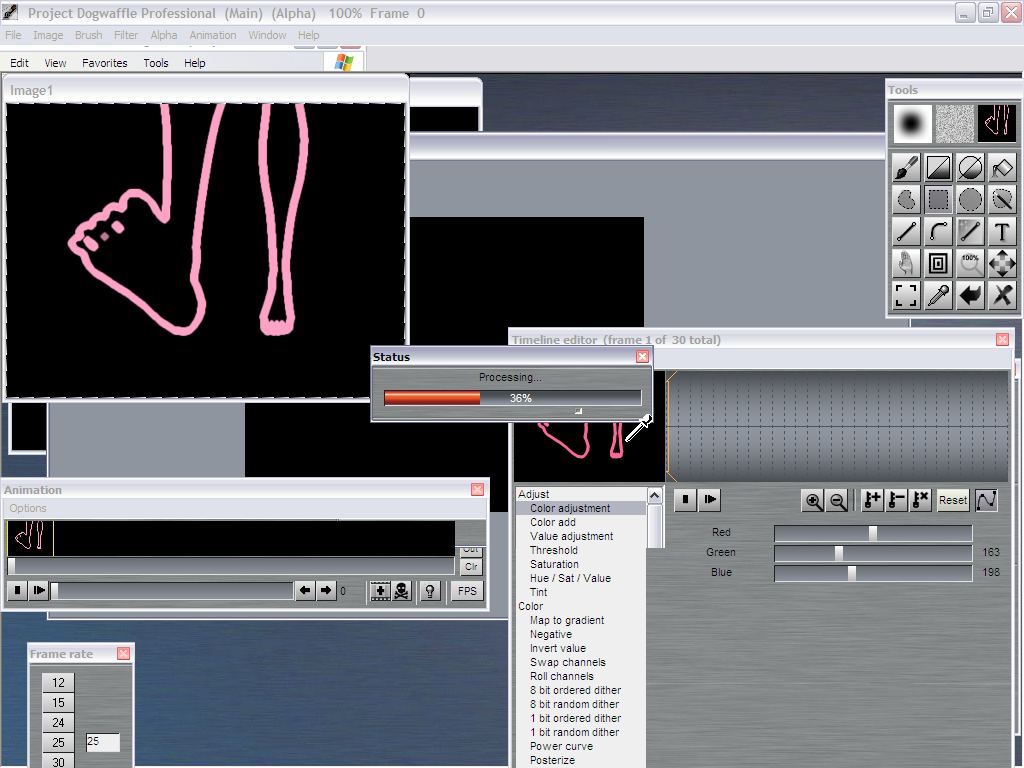
Resampling the video size If the original animation was an even 640x480 pixels in size, or some other standard popular size like 1280x720 (also known as 720p) or 640x360 to name a few, that will certainly not be the case any longer after cropping. Furthermore, chances are pretty god that at least one of your dimensions, width or height, are now an odd number. It is highly recommended to resize and resample it back to a standard dimension, before you attempt to save the new clip to AVI file. That's because there are a number of codecs that only work with special constraints, such as that the pixels must be multiples of 4 or 8 pixels, and certainly can'yt be odd values such as 627x311 or similar. Select the Resample option from the Image menu:  For example, set keep the 'Constrain' checkbox enabled initially, and set a value of 400 for the width. The height will change according to the current aspect ratio.  If the resulting height turns out to be an odd value as in the above example, or your see an even value that is not a multiple of 4 or 8 or otherwise incompatible with the requirements of the compression codec you will use when saving to AVI, then be sure to change the height too, but first, uncheck the Constrain checkbox, so that you may change the height and only the height, without affecting the width.  Of course, you might think this will introduce a little bit of distortion along X or Y, but it's only a few pixels off the suggested value from the aspect ratio constraint, so in honesty, you probably won't really notice. Save the new resized & resampled clip as usual to AVI when ready, from the Animation menu: Animation > Save AVI
 Clearing the Alpha after Resampling If you notice marching ants again after resampling, you can easily clear that up. It's just showing that the whole frame is selected. Just use 'Clear alpha' or the Ctrl+D shortcut to clear alpha. 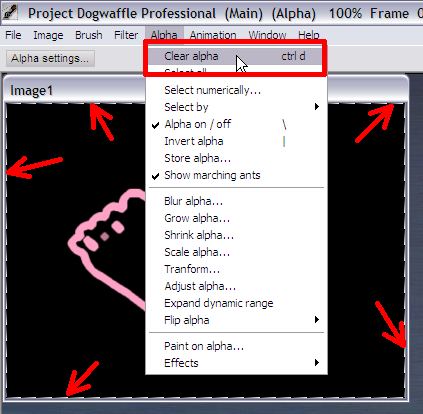 |
 |
 Poser 6 Collector's Edition Regular price: $229.95 Sale
price: only $59.95Free shipping in the US! |
|
|