

| More Tutorials PD Particles Project Dogwaffle TheBest3D.com |
 |
Sending it to the
Clipboard Ok, so you've just painted something with PD Particles. Now it's time to send it to your next program for further processing and use. Perhaps it's meant to be used in digital scrapbooking, or for a slideshow, or Powerpoint project? One way to send it elsewhere is by way of the Clipboard. No need to save it to file, just use the Image menu and copy the image to Clipboard. Thereafter you can switch to another application, and grab the image from the Clipboard. |
|
 |
Using PD
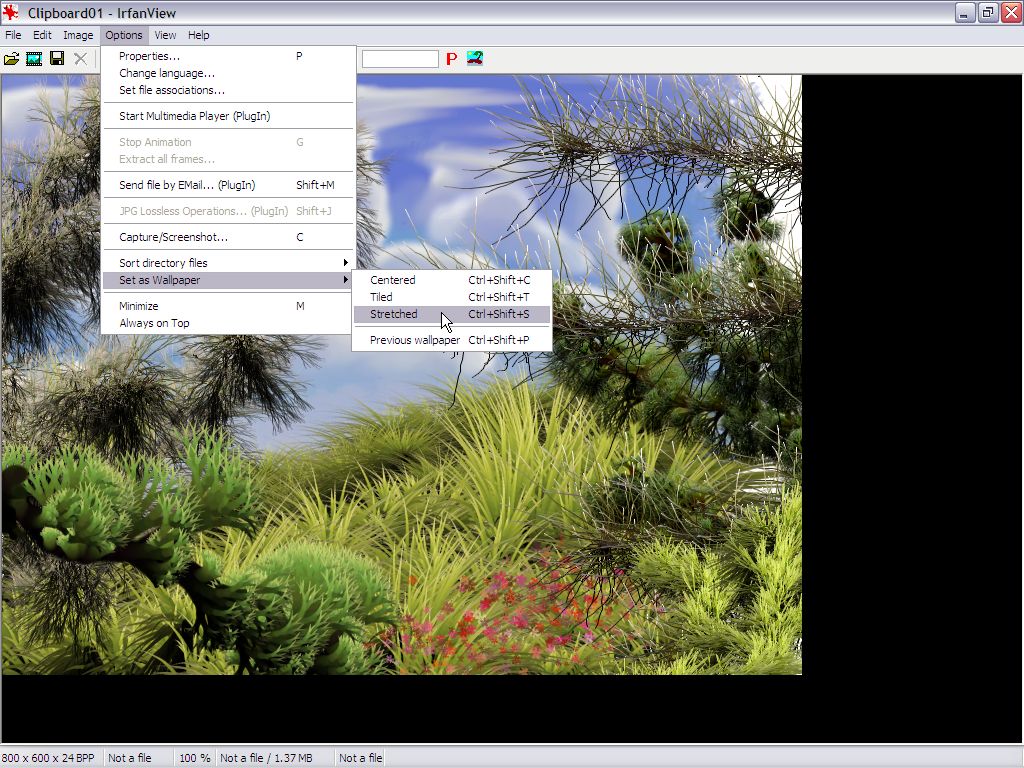
Particles with Irfanview or XnView For example, using Irfanview (www.irfanview.com) it's easy to turn the image into the desktop wallpaper. It's also a great viewer to build a slideshow, an online gallery or screensavers with all your artwork from PD Particles. Irfanview is a great companion to PD Particles. It also comes with numerous filters and can run many other filters from other popular programs. We like Irfanview also for cropping and turning the images, and for printing. You can very easily configure your image for printing at desired size. Another, similarly very powerful image viewer and companion to PD Particles is XnView (www.xnview.com). |
|
 |
Using PD Particles with Paint Shop Pro If you use JASC Paint Shop Pro, (www.jasc.com or www.corel.com), which is a very popular and powerful imaging tool, you could start by creating a new image with the desired dimensions., such as 800x600 pixels in this case. You can of course make it different sizes, perhaps bigger, in order to allow for some margins. That margin could be used to add a wooden frame to your beautiful image later on. |
|
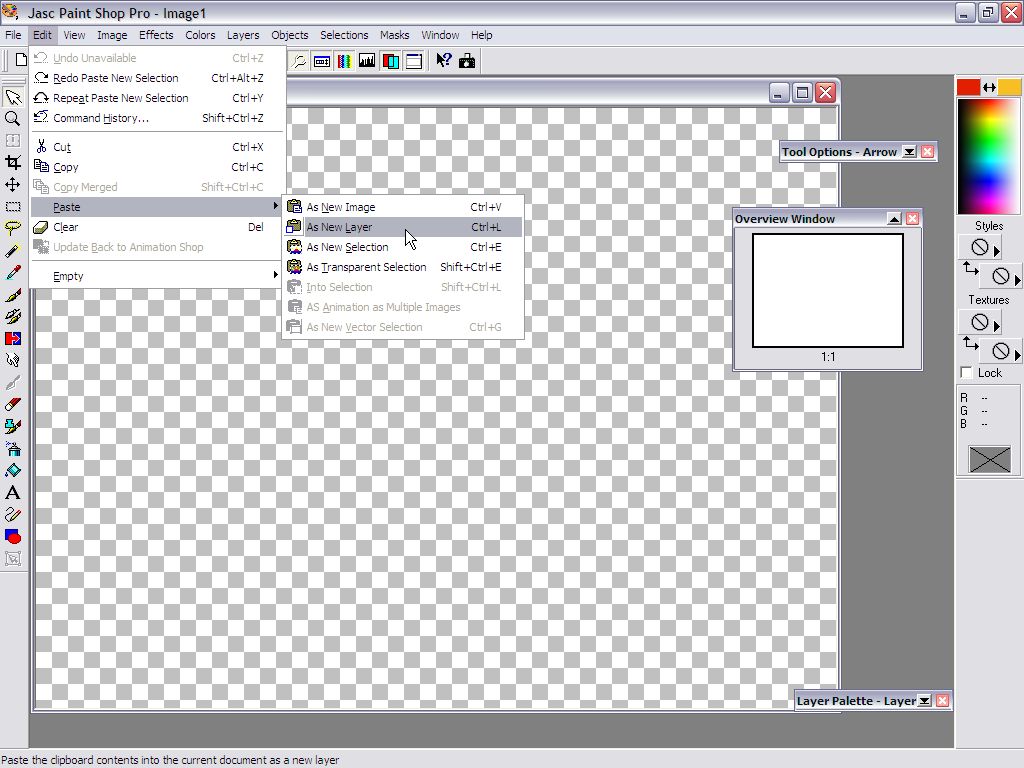 |
To insert your picture
which is still in the Clipboard, use the Paste command
from the Edit. Here we paste the image as a new Layer. |
|
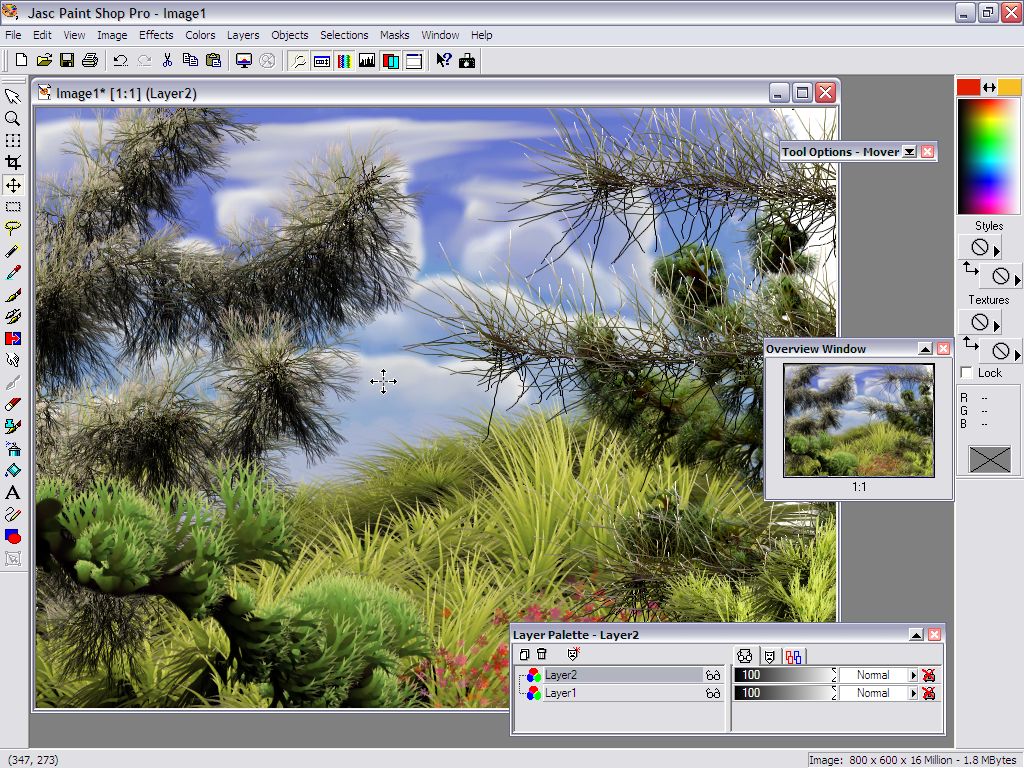 |
Voila, a new type of
artwork in your most popular image editor. And to think that we didn't even have to save the image to a file so far. This example was done with PSP 7, but of course will work similarly with just about any newer or older versions too. |
|
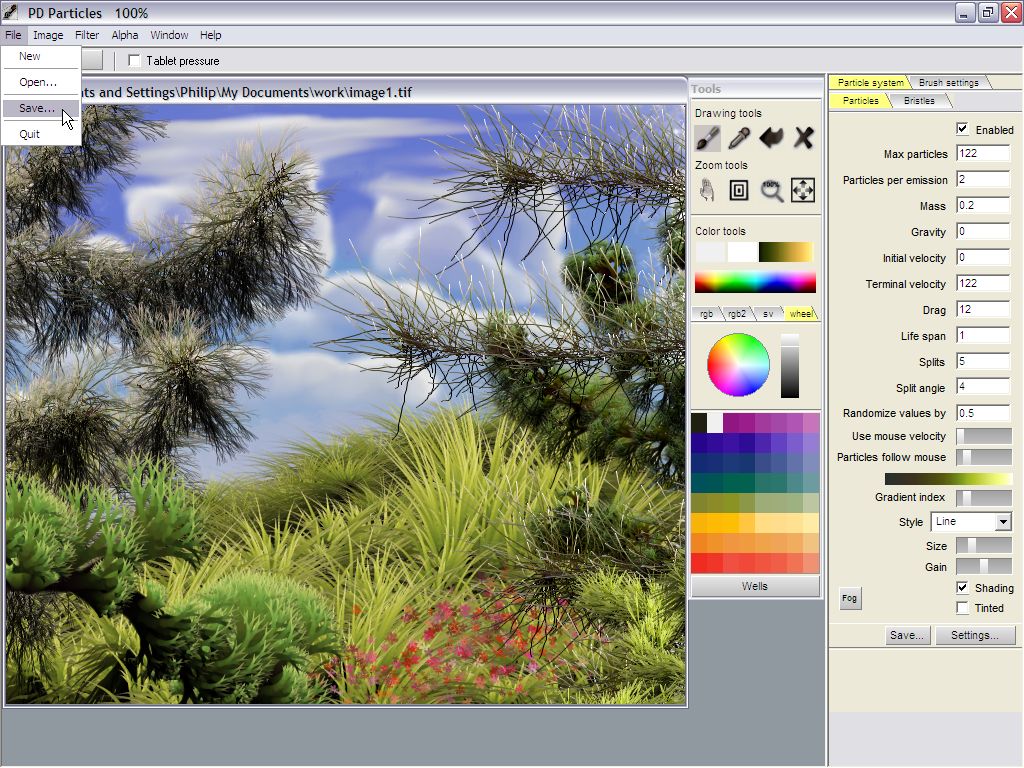 |
Savin to Files Another scenario may call for your artistic creations to be saved to an image file. This is especially the case when you have Alpha channel data to save too, or when you're working with 3D programs that accept an image from a file to be used as billboards or as patterns and textures. They usually accept such images from a file only. Back in PD Particles, select the File>Save... menu option. |
|
 |
There are several popular
image formats available for saving to. The Default Targa format is
recommended if you want additional options, i.e. image depth. It is also a good idea to save to several formats when you do this the very first time, just in case it turns out that there's some unexpected or unknown incompatibility between PD Particles and your other program with one of these formats. It would be a real shae if you had saved your work only in one format, only to find out it can't be used or is lost. In computer graphics, a popular saying goes like this: "Save often". Perhaps when you do this the first time, it's also recommended to save in several formats to find the one that works best for you and your programs. |
|
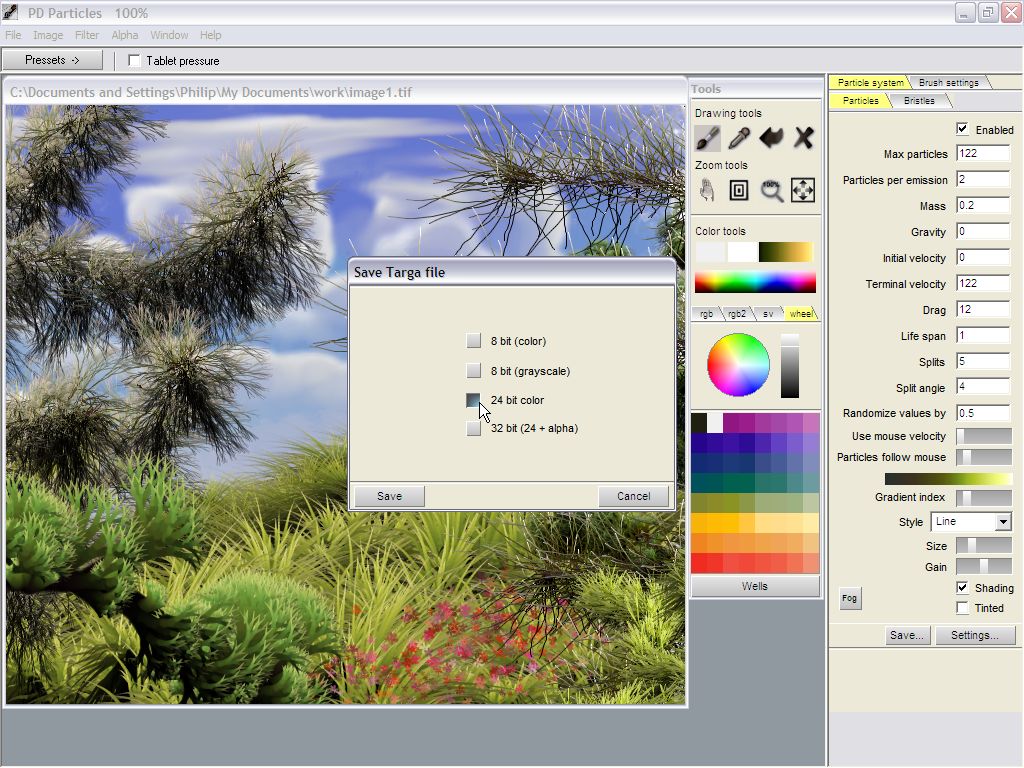 |
The Default Targa format
is also the recommended one if you have alpha channel data that you
want to save too,
in which case you should save it as 32-bit depth (RGB plus Alpha, also
known as 24-bit plus alpha). In our example here we'll however save it to 24-bit depth.
|
|
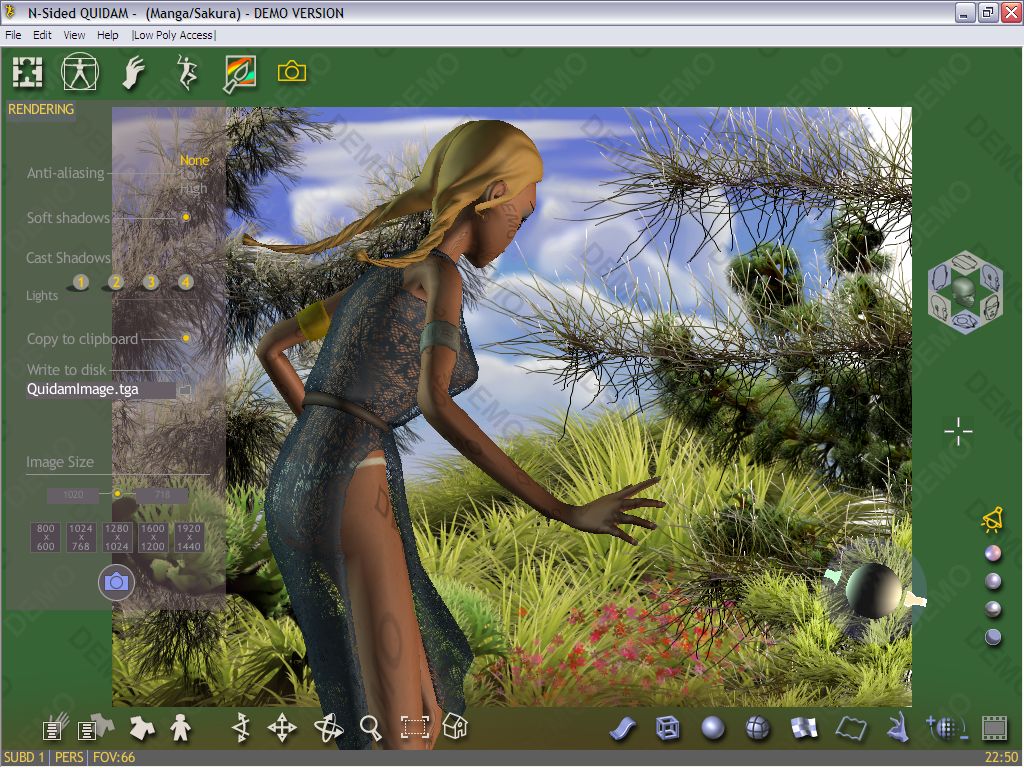 |
What next? You may be an avid user of popular 3D programs such as Blender, Bryce or Terragen, to name a few. Surely you'll know how to load your new images into the background, or turn it into a texture for such environment. Into Quidam Here's the image loaded into N-sided's Quidam (www.n-sided.com), a professional 3D Human solution. The image was simply loaded as the background image from the Preferences menu. The 3D human figure (derived from the Manga Girl preset) was then posed in front of the image. More info on Quidam here. Another popular task is to paint new fabrics and patterns for clothing. |
|
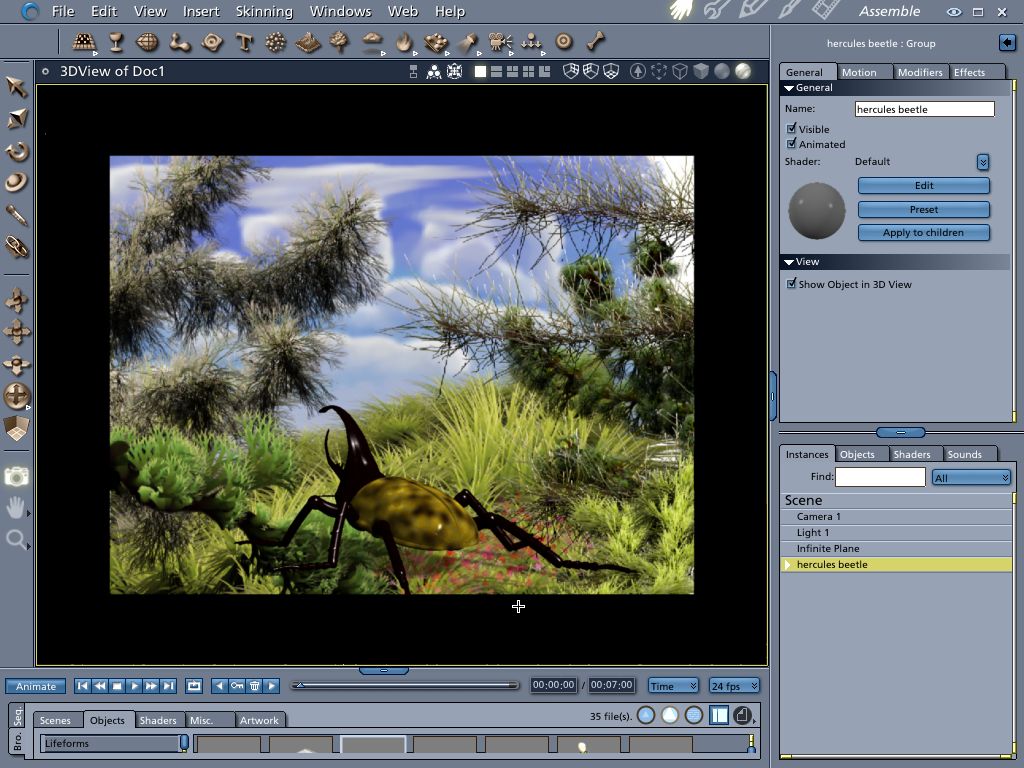 |
Into Carrara In Carrara, a 3D program by Eovia (www.eovia.com or www.daz3d.com) you can also load the image as the backdrop, and then place and render 3D objects on top, like this big monster scarab. If you haven't used or heard of Carrara yet but are interested in learning an affordable and powerful 3D program, you might do good with Carrara. Some of the earlier versions are still available at very strong discounts if you're not sure yet whether this is the right one for you or unable to get the latest and greatest version at this point. Carrara is loaded with awesome features for just about anything you might want to do in the fascinating world of 3D, and it makes it also fun to discover. Check here for more info. |
|
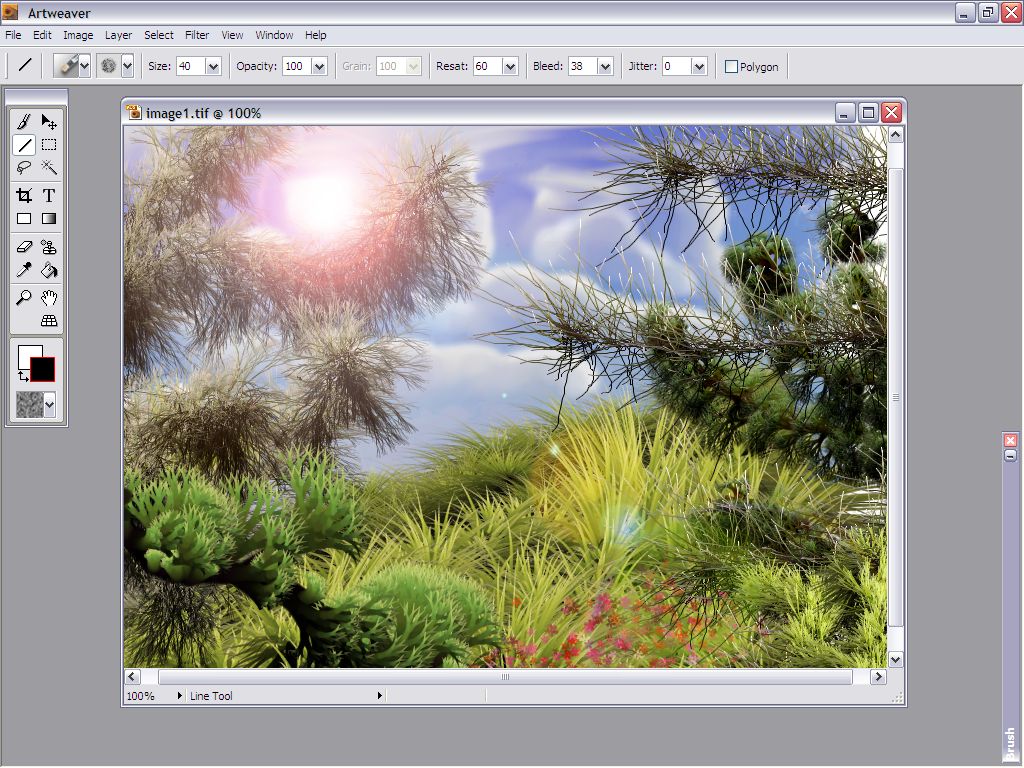 |
Into Artweaver - with a plugin If you need a freeware image editor to go along with PD Particles that allows for additional painting, then Artweaver (www.artweaver.de) might just do the job. In fact, Artweaver's developer has created a plugin, called Dogweaver. It creates an import/export connection in Artweaver's Fiel menu that allows for the image to be direcgtly sent from PD Particles to Artweaver, or the other way. It also works with PD Pro or Project Dogwaffle. In this example we used Artweaver to add a bright bloom and lens flare effect. see another tutorial which uses the Dogweaver plugin |
|
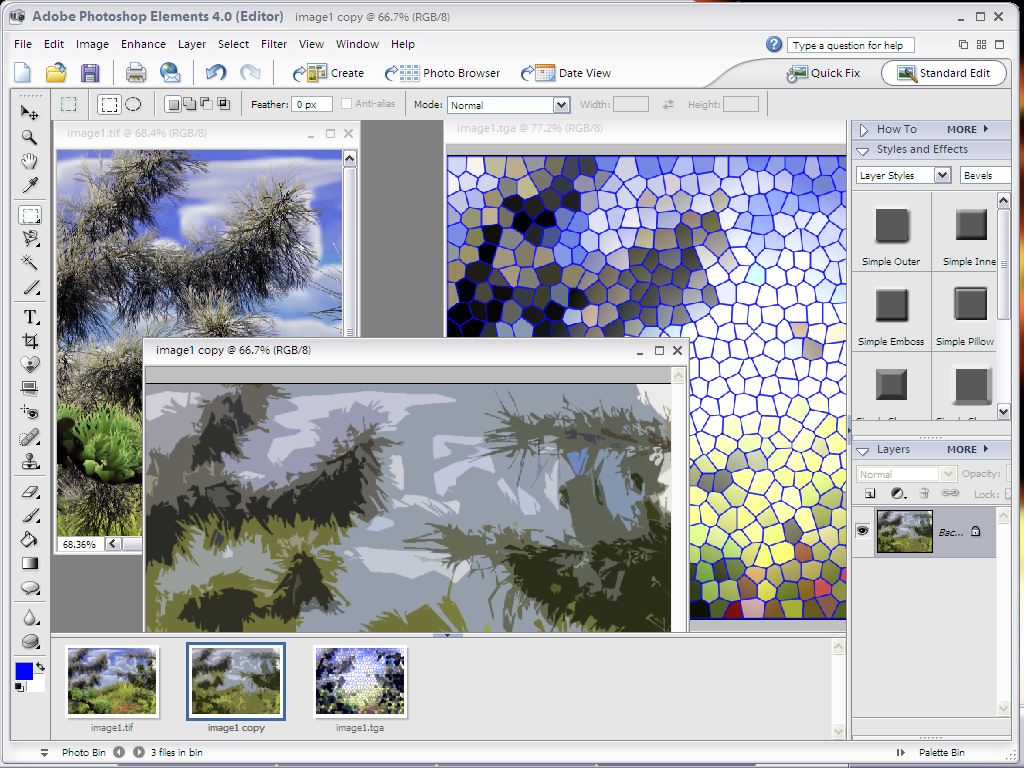 |
Into Photoshop Elements Another excellent, affordable and popular imaging solution is of course Adobe's Photoshop Elements.(www.adobe.com) Here's an example of what to do next with your image created in PD Particles, such as applying filters for further artistic effects, like stained glass or some cartoony color reduction that may be suitable as a scenic background in an Anime story. In fact, if you're just starting with digital imaging and are still looking for the right companion to PD Particles, you might find this offer for Photoshop Elements of interest. |
|
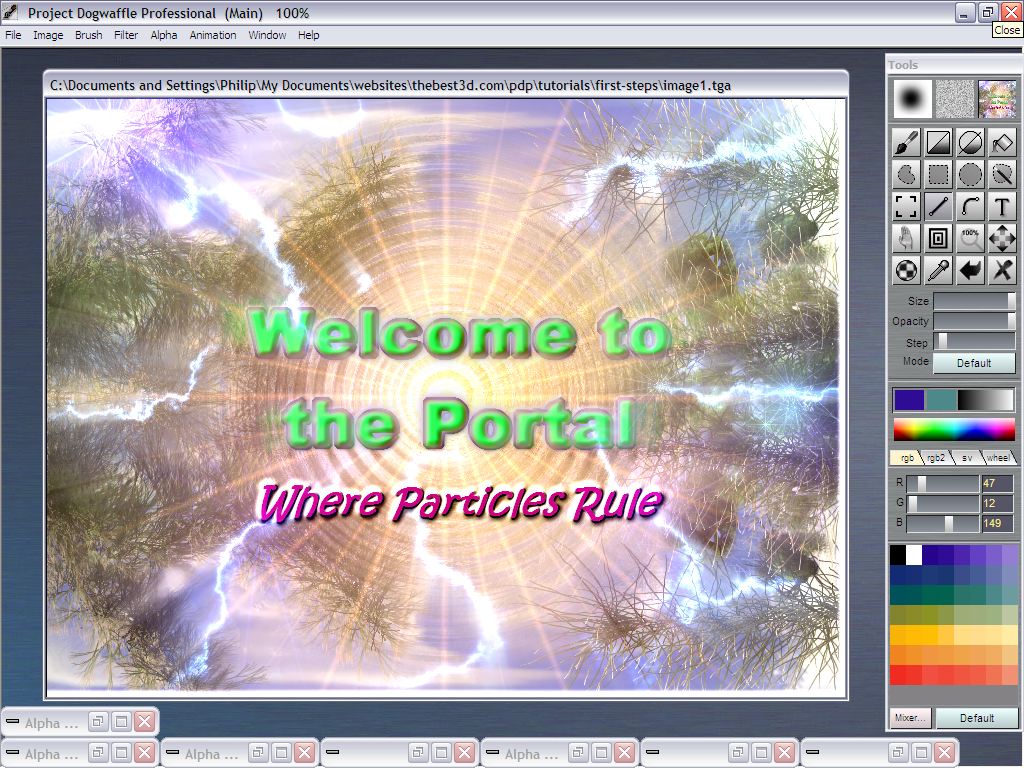 |
Going Further... There are so many ways to make good use of your images created in PD Particles. Here is yet another, created with PD Pro, also known as Project Dogwaffle Professional. The image was mirrored, and some wave displacement effect was added in the center. A bright Nova effect was added, and text too. Oh, and a few samples of lightning. Perhaps this might some day become part of a game, or website artwork, a book illustration or music CD cover, who knows. Digital painting has many uses and many tools can be found to assist. What's your application, and how will you use it with PD Particles? |
part 1 - part 2 - part 3 - part 4
If you want to your program added (or removed) from the ones shown in this tutorial please contact us.